
Microsoft Teams Rooms Are Changing: What IT Directors Need to Know

Microsoft has been making several changes throughout 2026, and some of them directly affect Teams Rooms. Older sign-in methods are being retired, some operating system versions are reaching the end of their lifecycle, and older hardware is losing certification. If it's been a few years since the Teams Rooms were installed, now might be a good time to start planning for what's next.
The changes affect different parts of a Teams Rooms deployment, so the first step is figuring out which devices are actually affected. From there, IT teams can decide what needs to be replaced and what can stay.
What’s Changing
End of Lifecycles: Microsoft began enforcing modern authentication for Teams Phones on June 1, 2026. Devices that relied on the retired methods can no longer sign in, accept, or make phone calls.
Unfortunately, this isn't something that can be solved with a firmware update. Older conference units and desk phones from brands like Crestron, Yealink, Poly, and AudioCodes that can't support the new requirements may need to be replaced altogether.
Expiring Certifications: Microsoft ended certification for Teams Rooms devices running Android 10 and 11 on September 3, 2026. Although they are expected to continue working for a limited time, many of these first-generation devices aren’t able to be upgraded to a compatible version. Some devices affected by the change are the HP Poly Studio X Series (Gen1 video bars), Neat Bar and Neat Board (Gen1), Logitech Rally Bar Huddle, and the Yealink RoomPanel Plus.
Slightly newer devices running Android 12 or 13 will have support that extends into 2028. That support window gives IT teams some time to plan a replacement instead of waiting until the device is no longer supported.
Updated System Versions: Microsoft is moving eligible devices toward Windows 11 version 25H2, with updates being rolled out automatically. Between this and their new passwordless sign-in method, both changes are intended to improve security and keep Teams Rooms up to date.
Any major update is another reason to know exactly what hardware is deployed, what software it is running, and whether the room still works.
What to Check
Although these changes aren’t a secret, they can be easy to miss. An unread retirement notice from June can quickly turn into a service call in October. Before assuming the technology needs to be replaced, there are a few things to check.
Device age and model: If the Teams Phones or room panels were installed four or more years ago, it's worth checking the specific models against Microsoft's current device lifecycle information. Some devices affected by the change are the Poly Trio 8500, Yealink T56, and Crestron UC-2.
Operating system: Confirm which version of Windows the room is running and whether it’s been updated to the 25H2 version. For Android-based rooms, check the Android version. Devices running Android 10 or 11 should be added to the list of devices that need upgrading.
Authentication setup: Older authentication methods may create problems as Microsoft continues moving Teams toward newer security requirements. Organizations that have dozens or hundreds of rooms can benefit from having a centralized device management. It is much easier to identify an aging device when the information is all in one place rather than as a reaction to a service ticket.
Working Doesn’t Mean Supported
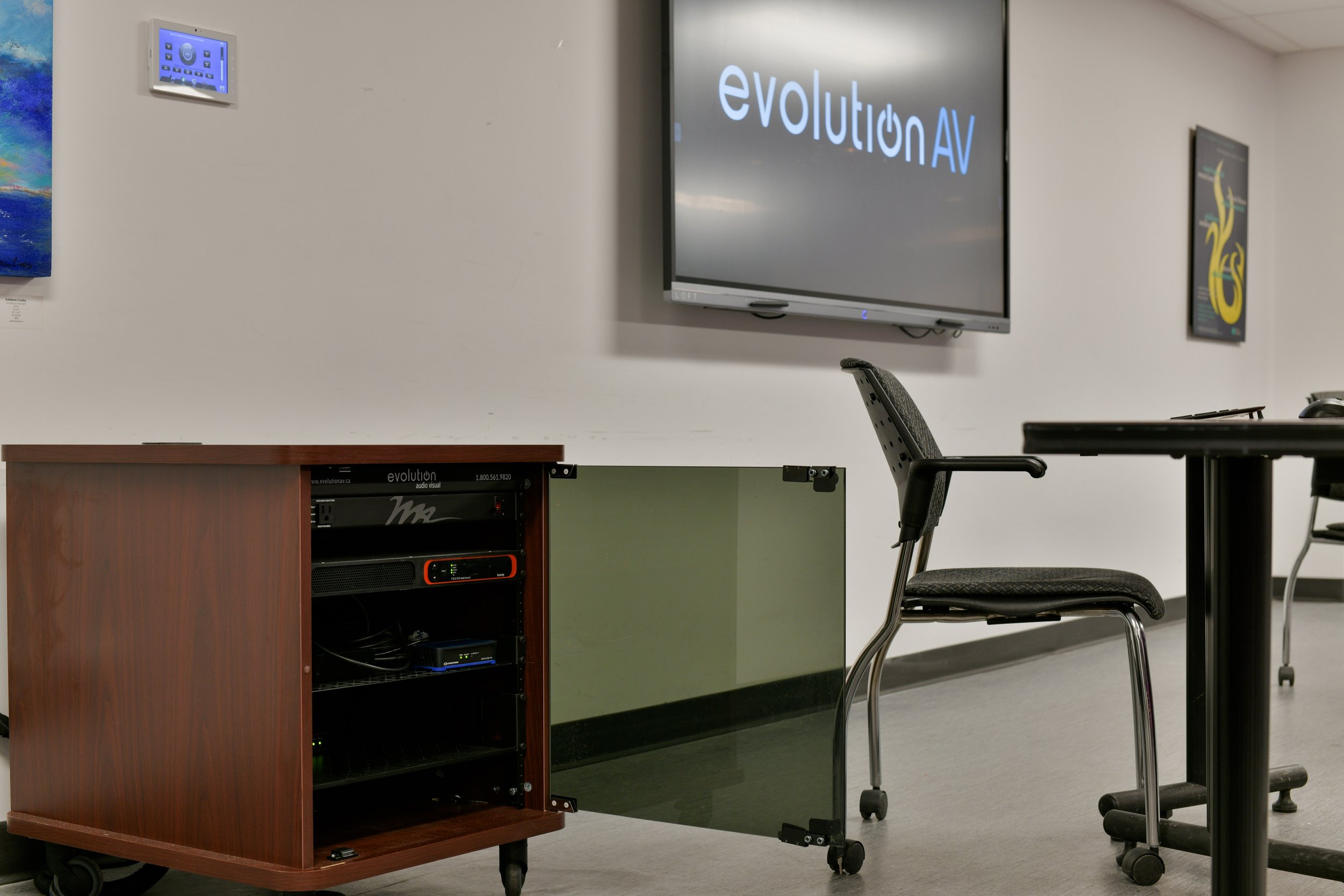
It’s easy to assume that a functioning boardroom doesn’t need updating until something breaks. A device can continue working after it reaches the end of its supported lifecycle, but that doesn’t mean it’s a good idea to keep relying on it.
The problem is that "working" and "supported" may seem similar but are actually very different, and the gap between the two tends to close gradually and then all at once. A device that's unsupported may keep running until an update, a Windows patch, or a certification expires, and then it stops working with little warning and no way to fix it. It may seem like a manageable risk for a single huddle room, but it's a much bigger one for a boardroom that hosts client meetings, a courtroom, or a hybrid classroom.
Three Ways to Approach an AV Update
These changes don’t impact every room, and not every affected room needs to be rebuilt from scratch. In some cases, the existing AV system is still in good shape and only a few components need to be replaced.
Before replacing an entire room, take a look at what is actually affected. The display, speakers, or control system may still have years of useful life left.
Swap-only: If the rest of the AV equipment is still current, and only the phone or compute unit is affected, the solution may be as simple as replacing that one piece of hardware.
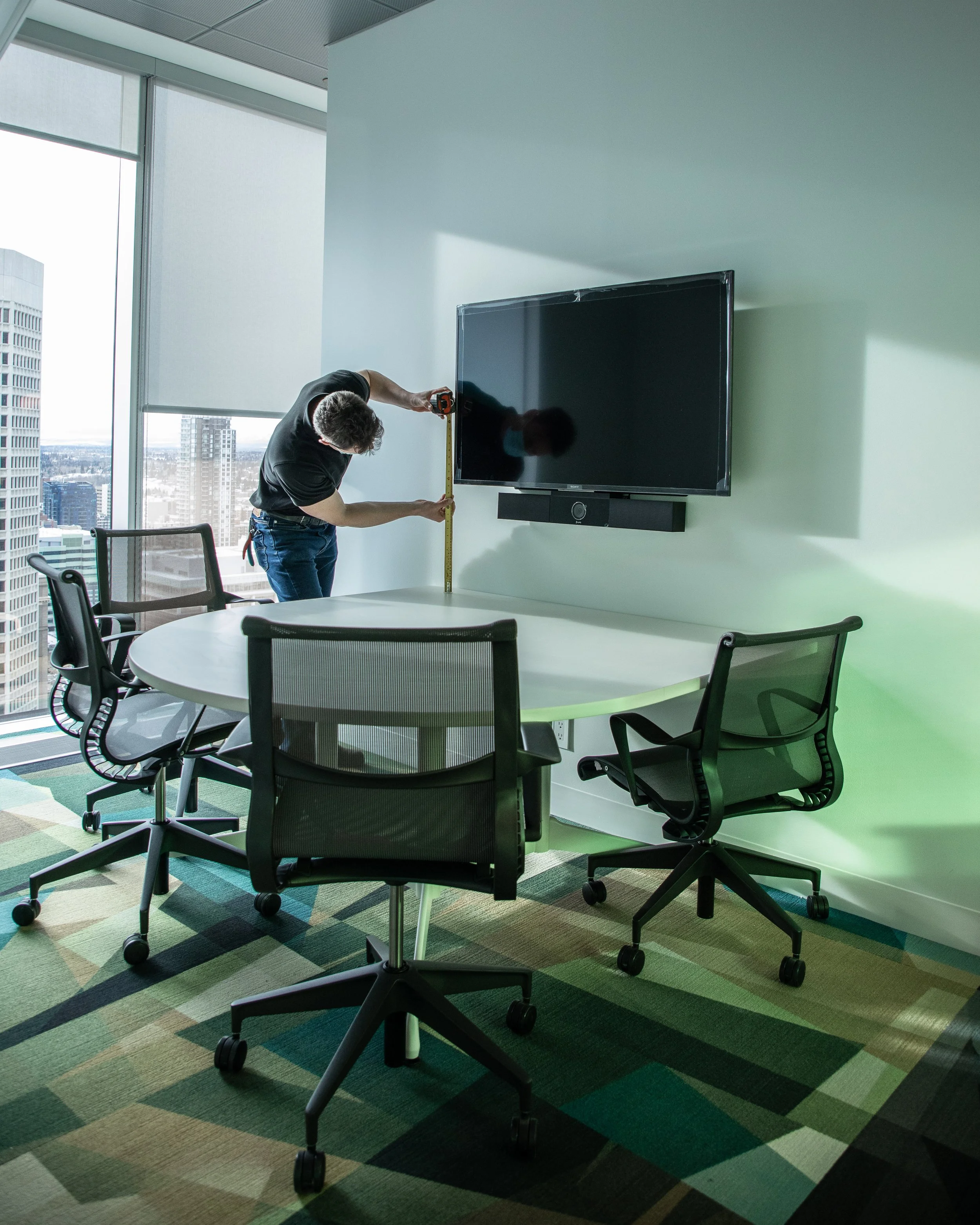
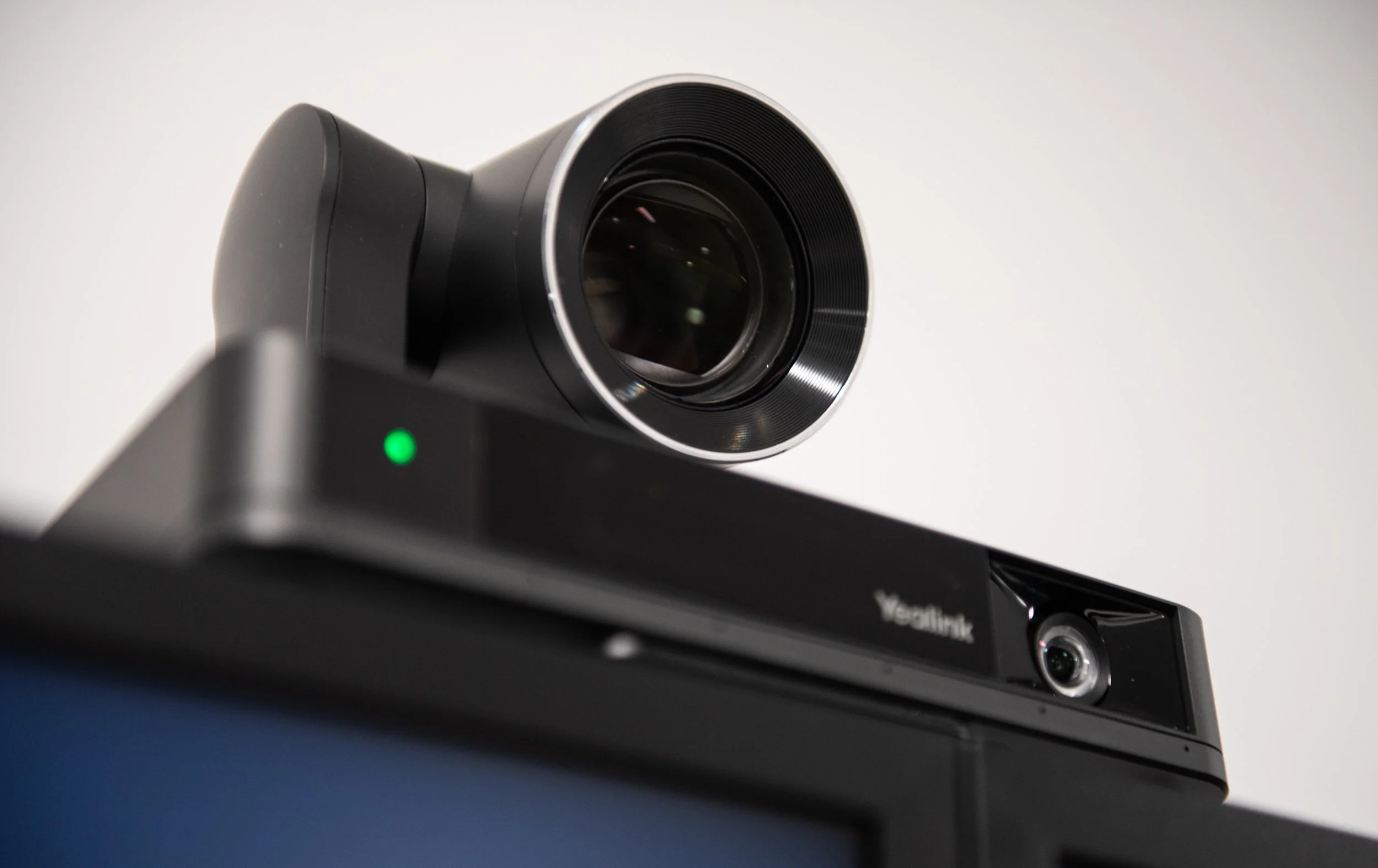
Partial refresh: If some of the room’s technology is still in good shape but other components are reaching the end of their lifecycle, a partial refresh can update the parts that need attention without starting over. For example, the existing display may still have plenty of life left while the compute, camera, microphones or control system need to be replaced. Keeping the equipment that still works can help extend the life of the room while bringing the critical technology up to date.
Full rebuild: If several rooms across a building are reaching the same point in their lifecycle, a larger refresh may make more sense. This can be an opportunity to standardize Teams Rooms across a floor, department, or entire building, rather than upgrading rooms one at a time. Standardizing the technology can make rooms easier for employees to use and easier for IT teams to support, while also creating a more consistent experience from room to room.
Plan the Refresh
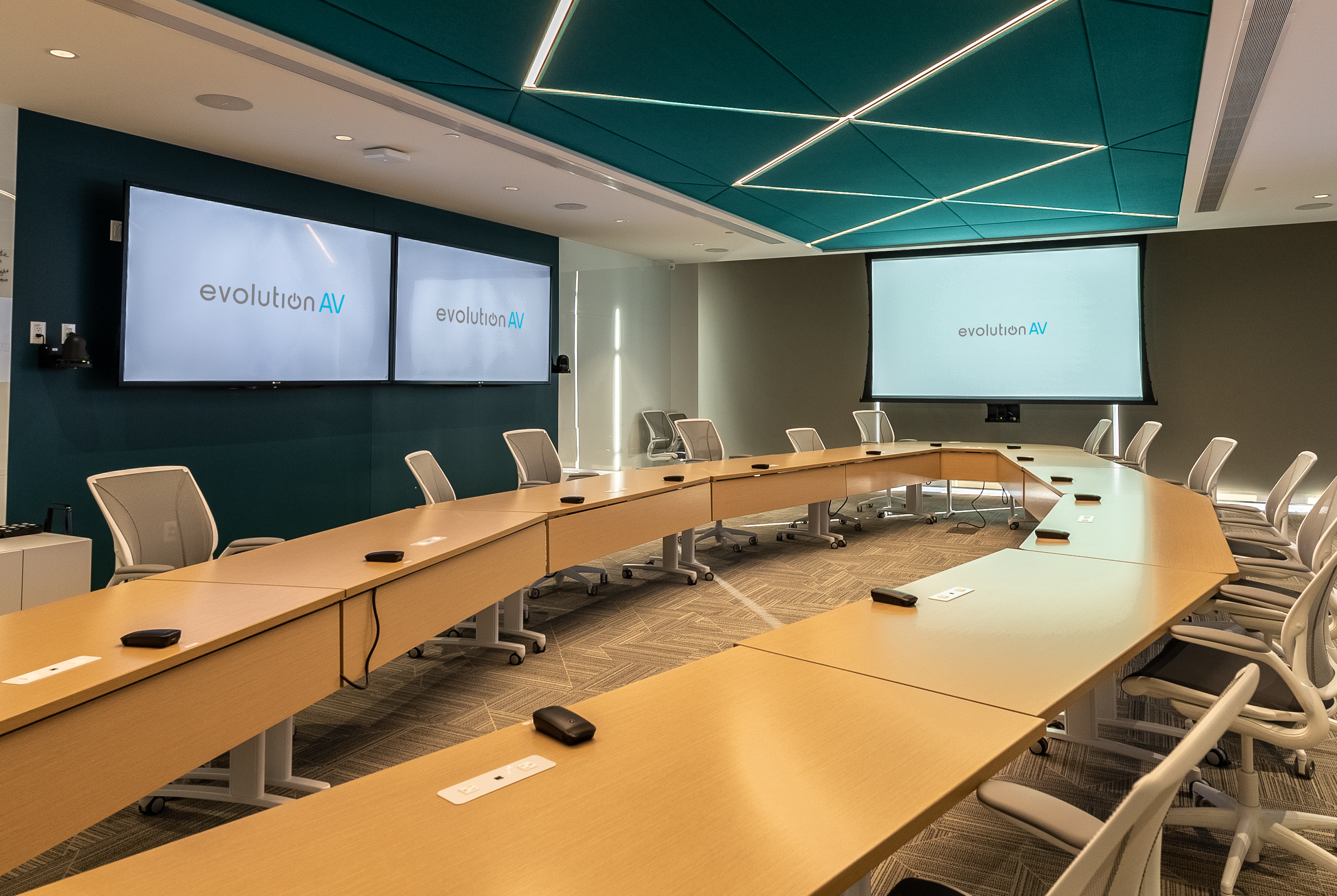
The goal isn’t for IT teams and facilities managers to replace everything at once. Understanding what is installed and what is approaching the end of its supported lifecycle can help to prioritize upgrades before they become urgent.
Sometimes the answer is a simple equipment replacement. Other times, a Microsoft lifecycle change can be the reason to finally address a room that has been making do with outdated technology for years.
Organizations with multiple Teams Rooms that need upgrading should take a step back and look at the bigger picture. Standardizing room technology, simplifying the user experience, and planning upgrades together can make a much bigger difference than replacing equipment as it fails.
If your Teams Rooms are approaching the end of their lifecycle, Evolution AV can help assess the existing systems and determine what should be replaced, what can stay, and where a larger refresh may make sense. Connect with an AV expert to start planning.




Frequently Asked Questions
-
Check the age and model of the room’s hardware, the operating system it is running, and whether the device is still supported and certified by Microsoft. A room does not necessarily need a full replacement just because one component is reaching the end of its lifecycle. In some cases, replacing a single device or completing a partial refresh is enough.
-
An unsupported device may continue to work, but it is no longer guaranteed to remain compatible with future Microsoft updates. This can lead to sign-in problems, compatibility issues, or hardware that can no longer receive the updates or support it needs.
-
There is no single replacement schedule for every Teams Room. Hardware lifecycle depends on the specific devices, operating system, Microsoft certification, and how the room is being used. IT teams should regularly review their Teams Rooms inventory rather than waiting until a device stops working.
-
No. A refresh can range from replacing one affected component to updating several parts of the room. If the display, speakers, microphones, cameras, or control system are still suitable, those components may be able to remain in place.
-
Centralized device management and a current hardware inventory can make it much easier to track Teams Rooms, operating systems, certifications, and upcoming lifecycle changes. Instead of discovering an outdated device when it creates a service ticket, IT teams can identify rooms that need attention ahead of time and budget for upgrades accordingly.
-
Yes. An AV integrator can assess the existing room, identify which components need to be replaced, and determine whether a swap, partial refresh, or larger upgrade makes the most sense. For organizations with multiple Teams Rooms, an integrator can also help develop a consistent approach to room technology and upgrades.